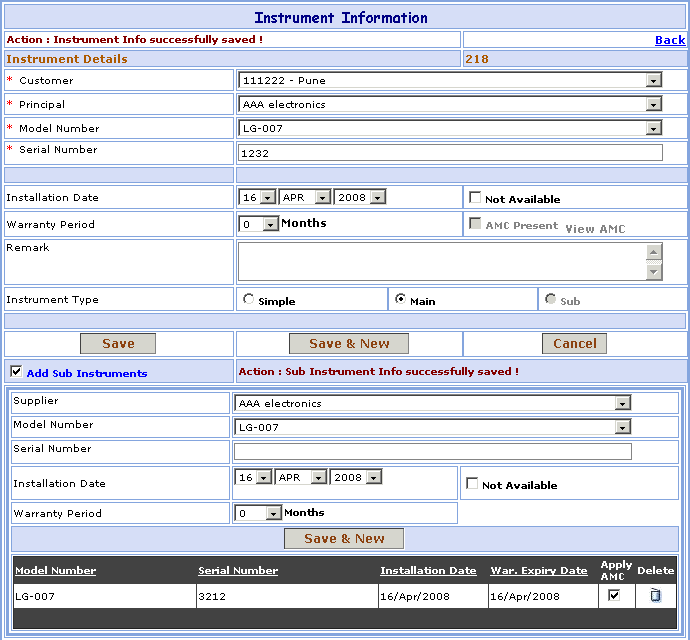
Instrument Master
>>Instrument screen fields:
1- Go to Homepage and click on Instrument link located at the top of the page.2- Click in Add Instrument link at the top-right corner of the page, open the New Instrument screen.
>>Instrument Information:
Suppose you want to add the Instrument in your database which is not present. Here are the steps to follow:1- Select the Customer & Principal.
2- Select Model Number field is automatically generated based on the
Principal you selected. This is the
model number of the principal.
3- Enter the Serial Number.
4- Select the Installation Date (DD, MM, YYYY) of Instrument but Date is not available
select  Not Available option.
5- Select Warranty Period of Instrument in Months.
6- Enter the Remark.
7- Select Instrument Type ( Simple or Main).
Field marked with * are compulsory.
>>Want to save Instrument Information?
Follow the steps given below:
2- Click on Save button to save Instrument. OR
Click on Save & New button to Save the Instrument and clear all the fields to enter New Instrument.3- Click on Cancel button to Cancel the Instrument and clear all the fields to enter New Instrument.
4- Click on Back link, go to the Instrument Search Screen.