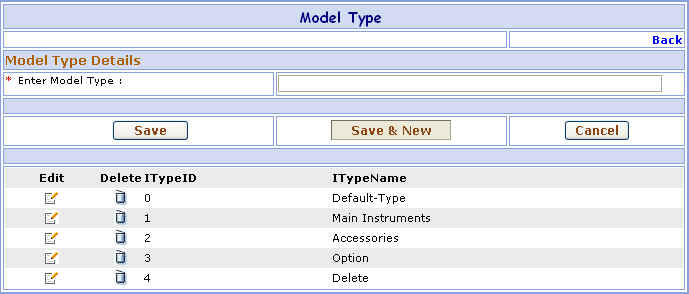
Model Type
This page is used to enter the Model Type in your database. You can Add, Modify, Delete the Type from this page.
You can go to Model Type screen in following way:
1- Go to Homepage and click on Administration link located at the top of the page.2- Click on the Model Type link that is seen at the left side of the page.
>>Want to Create New Model Type?
Suppose you want to add the Type Accessories in your database which is not present. Here are the steps to follow:1- Enter Model Type Name i.e. Accessories.
2- Click on Save button to save Model Type. OR
Click on Save & New button to Save the Model Type and then enter New Model Type.
3- Click on Cancel button to Cancel the Model Type and clear Model Type Name field to enter New Model Type.
4- The Model Type brief information appears in below grid.
>>Want to Modify Model Type?
Suppose you have entered the Mumbai Model Type by mistake. Don't worry, here's the solution. Just follow below steps:
1- In the grid below, you will find the Mumbai Model Type. Just click on the Edit ( ) button besides it.
2- You will see the details of Mumbai Model Type in the textbox just above the grid.
3- Change the Model Type Name and click on Save button. ORClick on Save & New button to Save the Model Type and then enter New Model Type.
4- Click on Cancel button to Cancel the Model Type and clear Model Type Name field to enter New Model Type.
>>Want to Delete Model Type?
1- Click on Delete ( )
button beside the Model Type that you want to
delete.
)
button beside the Model Type that you want to
delete.