Login Account
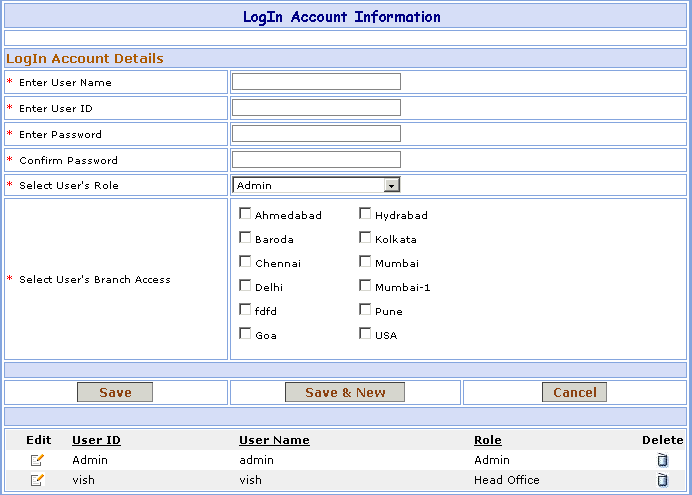
This page is used to fill the login user details. Users are the people who has the right to access this website.
You can go to Login (User) Master screen in following way:
1- Go to Homepage and click on Administration link located at the top of the page.2- Click on the Login Account link that is seen at the left side of the page.
1- Enter the User Name. It is User Name of person logging in.
2- Enter
the User ID. User ID is the unique ID for every user. No two users can have same ID.
User ID is required for the user to log in the website.
3- Enter the Password that is required for the user to log in to the website.
4- Enter the same password for confirmation.5- User's Role needs to be selected.
6- Select the  User's Branch Access.
a. Admin access the all user branch.
b. Area\Branch Manager access the selected user branch.
c. Head Office access the one or two selected user branch.
d. User access the only one selected user branch.
Field marked with * are compulsory.
7- Click on Save button to Save the User. OR
Click on Save & New button to Save the User and clear all the fields to enter New User.
8- Click on Cancel button to Cancel the User and clear User Name field to enter New User.
9- The User brief information appears in below grid.
>>Want to Modify User details?
Suppose you have entered the wrong User data by mistake. Don't worry, here's the solution. Just follow below steps:
1- In the grid below, you will find the User. Just click on the Edit ( ) button besides it.
2- You will see the details of User information in the textbox.
3- Change the wrong User data and click on Save button. ORClick on Save & New button to Save the User and clear all the fields to enter New User.
4- Click on Cancel button to Cancel the User and clear User Name field to enter New User.
>>Want to Delete User?
1- Click on Delete ( )
button beside the User List that you want to delete.
)
button beside the User List that you want to delete.