Installation Notification
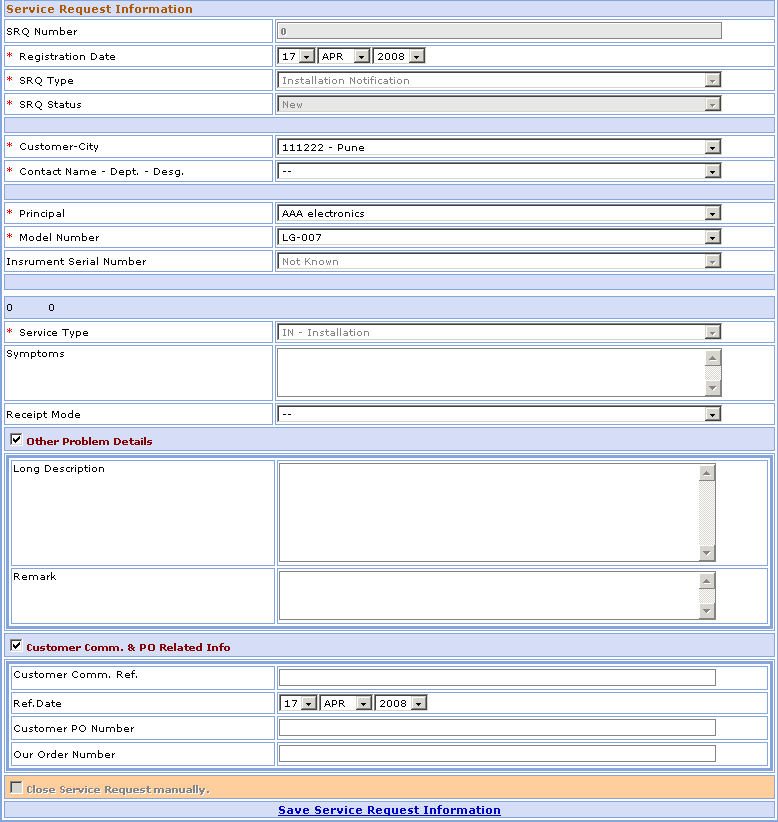
>>Installation Notification (IN) screen fields:
1- Go to Homepage and click on Service Request link located at the top of the page.2- Click in New>> Installation Notification link at the top-right corner of the page, open the New IN Service Request screen.
>>Instrument Information Service Request:
Suppose you want to add the IN Service Request in your database which is not present. Here are the steps to follow:1- Select Registration Date (DD, MM, YYYY).
2- IN Service Request SRQ Type & SRQ Status field is automatically generated.
3- Select Customer-City. ex- Reliance-Mumbai.
4- Select Contact Name-Dept.-Desg. ex- Mukesh-Oil-MD.
5- Select Principal, Model Number. ex- TSS, Com123.
6- IN Service Request Instrument Serial Number & Service Type field is automatically generated.
7- Enter the Symptoms & Select the Receipt Mode.
8- You want to fill other problem details to select the  Other Problem Details option.
Enter the Long Description & Remark.
9- You want to fill customer communication & po related information
to select the Customer Comm. & PO Related Info.
Enter the Customer Communication Reference Number.
Select Customer Communication Reference Date (DD, MM, YYYY).
Enter the Customer PO Number & Our Order Number.
Field marked with * are compulsory.
>>Want to save Installation Notification Service Request?
Follow the steps given below:
2- Click on Save Service Request Information link to save IN (Installation Notification) Service Request.