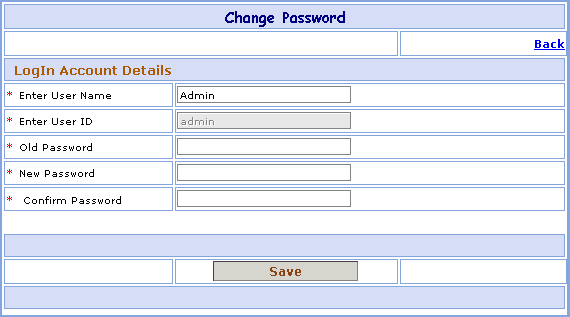
Change Password Master
>>Change Password screen fields:
1- Go to Homepage and click on Change Password link located at the top of the page.
>>Change Password Information:
Suppose you want to change Password in your account. Here are the steps to follow:1- Modified the User Name if needed. It is User Name of Person logging in.
2- User ID field is automatically selected based on the account you selected. User ID is the unique
ID for every user. No two users can have same ID. User ID is required for the user to log in
the website.
3- Enter the Old Password.
4- Enter the New Password that is required for the user to log in to the website.
5- Enter the same Password for confirmation.
Field marked with * are compulsory.
6- Click on Save button to save Password.