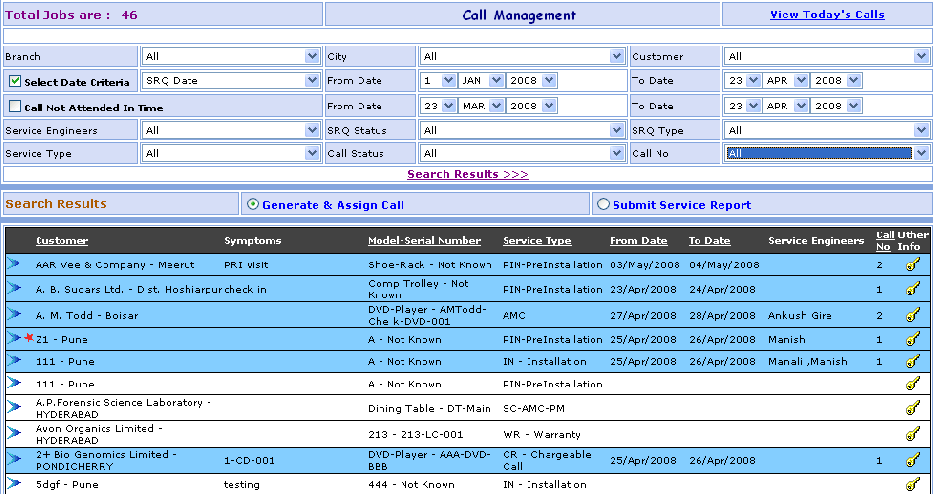
Call Management Search
This page Shows List of Calls manage &
not manage depending on different search criteria
selected by user such as Branch, City, Customer wise search call.
Scheduled
date wise search call, Not Attended In Time date wise search call. Service
Engineer, Service Type, SRQ Type, SRQ Status wise search call. call is
Assign or
Not Assign Wise search call.
You can go to Call Management Search Screen in following way:
1- Go to Homepage and click on Call Management button located at the top of the page.
>>Want to see Today's Calls?
1- Click on the View Today's Calls link that is seen at the right corner of the page, open the Today's Calls screen.
>>Want to Search record of Particular Call?
Suppose you want the details of a Call e.g. Reliance (Customer). Here are the steps to follow:
1- Call can be searched by selecting Branch, City, Customer.
2- To display the date wise Scheduled Calls or SRQ, check the  Select
Date Criteria (SRQ Date or Call Scheduled Dates)
Select
Date Criteria (SRQ Date or Call Scheduled Dates)
& select From Date & To Date.
3- To display the date wise Not Attended Calls, check the Call Not Attended IN Time & Select From Date & To Date.
4- Call can be searched by selecting Service Engineer, SRQ Type, SRQ Status, Service Type, Call Status, Call Number.
5- Click on Search Results >>> link.
6- The Call brief information appears in grid.
>>Want to see Other Information?
Suppose you Want to see the Other Information (SRQ's Call Info) of Reliance Customer.
1. In the grid below, you will find the Reliance Customer. Just click on
the Other Info ( )
button beside it,
)
button beside it,
Open the Other Information (SRQ's Call Info) screen.

>>Want to Add or Modify Generate & Assign Call?
Suppose you want to Add or Modify the Assign Call of Reliance Customer.
1- First Select the Generate
& Assign Call.
Generate
& Assign Call.
2- In the grid below, you will find the Reliance Customer. Just click on
the  (Edit)
button besides it,
(Edit)
button besides it,
Open the Call Assign screen.
>>Want to Submit Service Report?
Suppose you want to Submit Service Report of Reliance Customer.
1- First Select the Submit
Service Report.
2- In the grid below, you will find the Reliance Customer. Just click on
the (Edit)
button besides it,
Open the Submit Service Engineer Report.